Open an appointment from the diary to change its details, move it to another time or cancel it.
Open the appointment
- Open Today.
- Move to the appointment date if required.
- Choose the appointment.
The appointment actions show what is currently available.
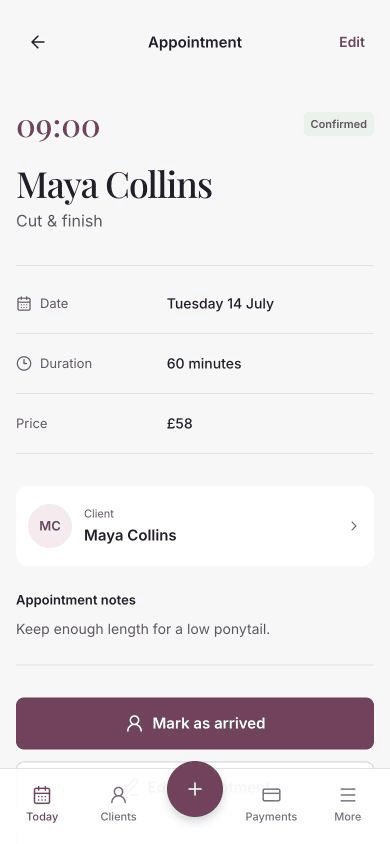
Edit or reschedule
Choose Edit appointment or Edit in the top-right corner.
You can change:
- Team member
- Client
- Service
- Date
- Start time
- Notes
To reschedule the appointment, change its date, start time or team member, then choose Save changes.
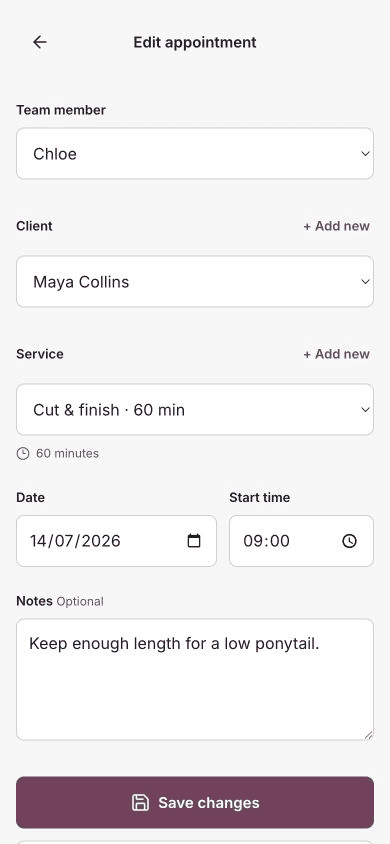
Chairful checks the new time against appointments and blocked time. If it conflicts, choose another time before saving.
When an appointment cannot be edited
A cancelled appointment cannot be edited.
A paid appointment is also locked because its booked service and price are connected to the recorded payment. Refund the payment first if the appointment needs to be cancelled.
Cancel an unpaid appointment
Open the appointment and choose Cancel appointment.
Chairful changes its status to cancelled and keeps the appointment in the record. The time is no longer treated as an active appointment.
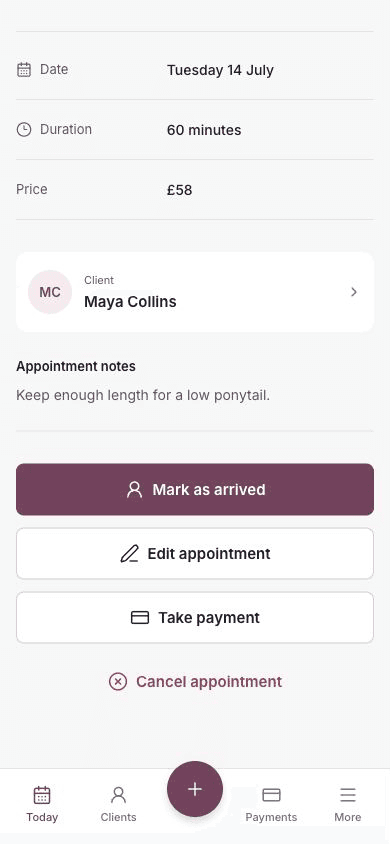
Cancel an appointment with money attached
Before Cancel appointment becomes available:
- Refund the client payment, if one was recorded.
- Refund any paid online booking deposit.
- Wait for any Stripe refund still processing to complete.
Learn how to refund a payment or booking deposit.
When the client made the change
Clients can cancel or reschedule eligible online bookings from My bookings. Chairful adds a booking notification when they do.