Refund from the appointment so Chairful keeps the returned amount and visit history together.
Only the business owner can refund payments and online booking deposits.
Open the paid appointment
Open the appointment from Today or from the client’s visit history.
The appointment shows the payment, deposit and any existing refund status.
Refund a client payment
- Choose Refund payment.
- Review the amount.
- Add an optional refund note.
- Choose Refund payment again.
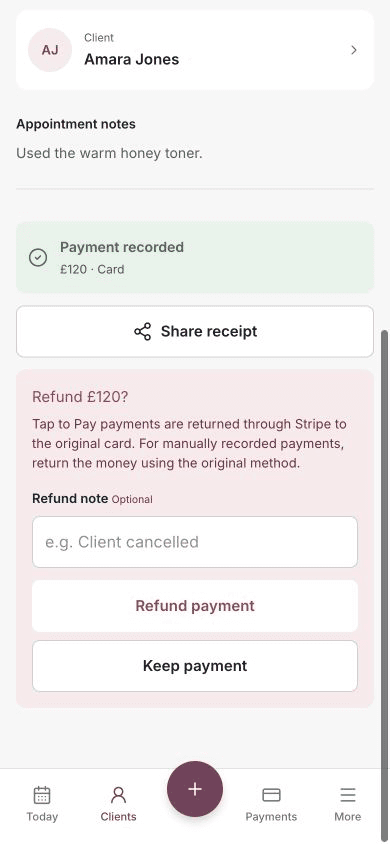
For a Tap to Pay payment, Stripe returns the money to the original card.
For Card, Cash or Other payments recorded manually, Chairful records the refund but does not move the money. Return it to the client using the original payment method.
If part of a payment has already been refunded, Chairful offers to refund the remaining amount.
Refund an online booking deposit
Open the appointment and choose Refund booking deposit.
Review the amount, then choose Refund deposit. Stripe returns the deposit to the card the client used when booking.
Understand the refund status
- Refund processing means Stripe has accepted the request but has not confirmed completion yet.
- Refunded means the refund succeeded.
- Refund failed means the refund did not complete. Open the appointment and choose Retry refund.
- Partially refunded means part of the payment has been returned and a balance remains.
Do not submit the same refund again while Chairful shows it as processing.
Share a refund confirmation
After a successful payment refund, choose Email confirmation or Share confirmation when available.
You can return to the appointment later and choose Share refund confirmation.
Refund before cancelling
Chairful does not allow a paid appointment to be cancelled until:
- The recorded payment has been fully refunded.
- Any paid online booking deposit has been refunded.
- Stripe has finished processing those refunds.
When those conditions are complete, return to the appointment and choose Cancel appointment.