Take a contactless payment or record a payment from the appointment so Chairful keeps the amount, method and client visit together.
Open the appointment
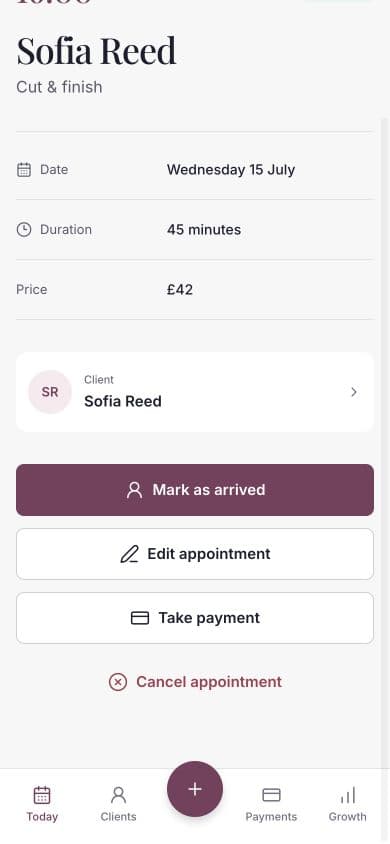
- Open Today.
- Choose the relevant appointment.
- Review the service price and any booking deposit already paid.
- Choose Take payment or Take remaining payment.
Take a payment with Tap to Pay
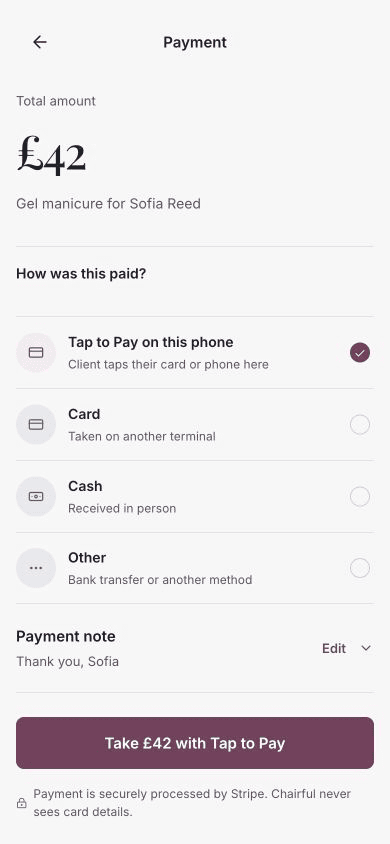
When Tap to Pay is ready on a supported phone, Tap to Pay on this phone appears first and is selected automatically.
- Keep Tap to Pay on this phone selected.
- Check the amount and edit the payment note if required.
- Choose Take £[amount] with Tap to Pay.
- Ask the client to hold their contactless card, phone or watch against your phone when prompted.
- Keep Chairful open until the payment completes.
Tap to Pay securely processes the payment through Stripe. Chairful does not see or store the client’s card details.
If you see Set up Tap to Pay instead of the amount, the business owner needs to finish the one-time setup.
Record a payment taken elsewhere
Choose the method that describes how you already received the money:
- Card — the payment was taken on another card terminal.
- Cash — you received cash in person.
- Other — the client paid by bank transfer or another method.
Edit the payment note if required, then choose Record £[amount] payment.
These manual options record the payment only. They do not move money or charge the client.
After recording
Chairful shows Payment complete after a successful Tap to Pay payment or manual payment record. The appointment and client visit history show the paid state.
You can share the stored receipt from the appointment. Where receipt email is available, Chairful may ask you to confirm or add the client’s email address.
Booking deposits
When an online booking deposit has already been paid, Chairful shows the deposit and calculates the remaining balance. Use Take remaining payment to record or collect only what is still due.
Correcting a payment
Open the paid appointment and choose Refund payment. Tap to Pay payments are returned through Stripe to the original card. For a manually recorded payment, return the money using the original payment method as well as recording the refund in Chairful.