Tap to Pay lets you take a client’s contactless card or digital-wallet payment directly on a supported phone, without a separate card reader.
The business owner must complete the payment setup. Tap to Pay is available in the Chairful mobile app when the phone, operating system and region are supported.
Open Payments
- Open Chairful on the phone you will use to take payments.
- Choose Payments in the main navigation.
If Chairful shows Take card payments with your phone, choose Set up payments.
Connect Stripe
Follow the secure Stripe steps to:
- Enter or confirm your business details.
- Connect the bank account that should receive payouts.
- Complete any identity or business checks Stripe requests.
Chairful does not store the sensitive identity, card or bank details you enter during Stripe setup.
Return to Chairful when Stripe has finished. If the Payments screen says more information is required, choose Finish setting up payments and complete the outstanding Stripe requirements.
Add your payment location
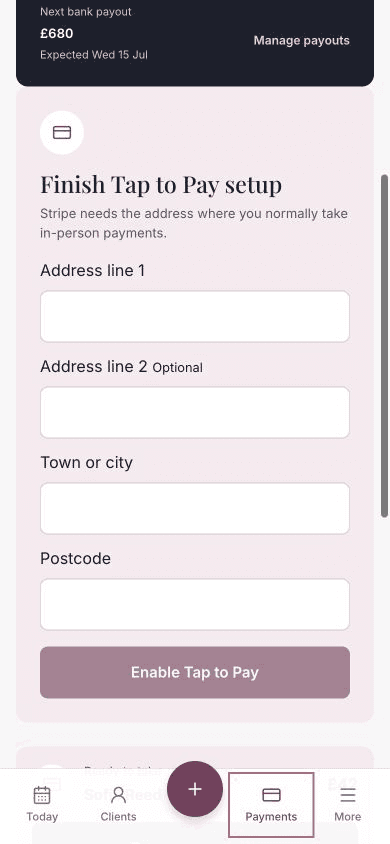
When Stripe is connected, Chairful asks for the address where you normally take in-person payments.
Enter:
- Address line 1
- Address line 2, if needed
- Town or city
- Postcode
Choose Enable Tap to Pay.
Check that Tap to Pay is ready
The Payments screen shows Tap to Pay is ready when the payment account, location and phone are ready.
Open an unpaid appointment and choose Take payment. You should see Tap to Pay on this phone above the manual Card, Cash and Other options.
Take your first Tap to Pay payment.
If Tap to Pay does not appear
Check that:
- You are using the Chairful mobile app rather than the browser version.
- Tap to Pay is supported on this phone.
- The phone’s operating system is up to date.
- Stripe setup and any outstanding requirements are complete.
- A payment location has been added in Payments.
- The phone has an internet connection.
If a team member sees Waiting for the business owner to finish setup, the owner needs to complete the steps above.
If a payment is interrupted
Return to the same appointment. Chairful checks the pending payment with Stripe before offering Tap to Pay again, helping to avoid charging the client twice.
If Chairful cannot confirm the result, follow the message on screen and check the payment in Payments before trying again.