Clients can manage eligible online bookings from Chairful’s My bookings page.
Open My bookings
Go to chairful.app/my-bookings.
Sign in with the client account used for booking. A new client can choose Create account, enter their name, mobile number, email address and a password, then verify their email.
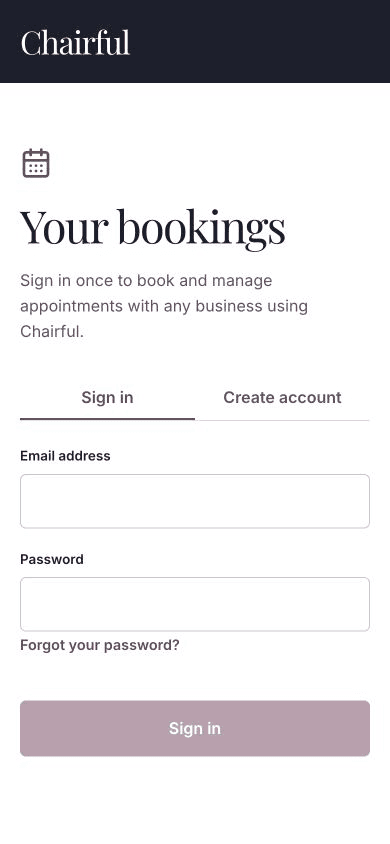
Future appointments across businesses using Chairful appear under Your bookings.
Reschedule a booking
If the booking can be changed online:
- Choose Reschedule beside the appointment.
- Choose an available date.
- Choose a new time and team member.
Chairful returns to Your bookings with the updated appointment.
The original service stays attached to the booking. Available times follow the business’s working hours, existing appointments, blocked time and online booking rules.
Cancel a booking
If cancellation is available:
- Choose Cancel beside the appointment.
- Review the business name in the confirmation.
- Choose Yes, cancel.
Choose Keep booking to leave the appointment unchanged.
If the buttons do not appear
Chairful shows Cancel and Reschedule only when the booking is eligible.
The page may show a reason when a booking cannot be changed online. Online changes are unavailable after the appointment has started, after it is cancelled or no longer confirmed, or when a payment or deposit is attached.
Rescheduling also requires the business’s online booking profile to be ready and published, and the booked service to remain active.
Contact the business directly if the change is urgent or the online option is unavailable.
If the session has ended
Sign in again to continue. Use Forgot your password? on the sign-in screen if needed.
After a successful client cancellation or reschedule, Chairful notifies the business and updates the appointment in its diary.