Blocked time prevents appointments from overlapping a short unavailable period, such as lunch, training or an errand.
Add blocked time
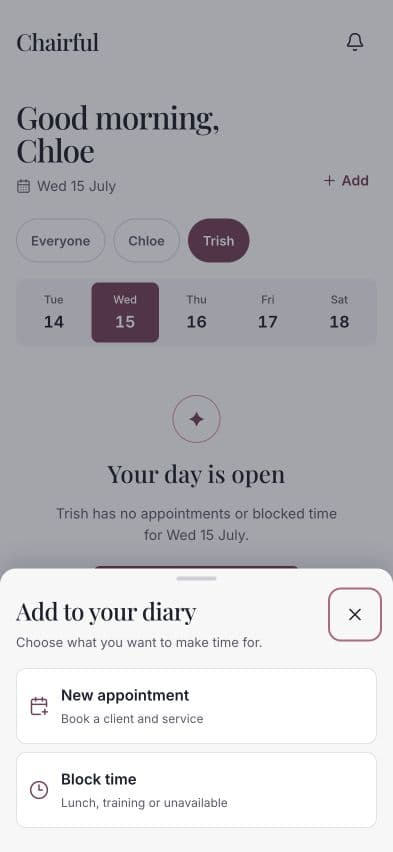
- Open Today.
- Move to the required date.
- Choose Add.
- Choose Block time.
Enter the details
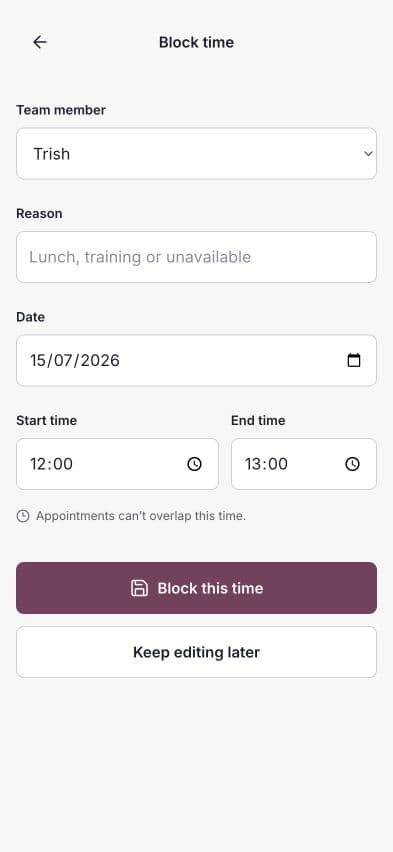
Choose:
- Team member — whose diary should be unavailable.
- Reason — for example, Lunch, Training or Unavailable.
- Date.
- Start time and End time.
The end time must be later than the start time. Choose Block this time to save.
What blocked time changes
The period appears in the diary for the selected team member. Chairful prevents appointments from overlapping it, including appointments requested through online booking.
Edit or remove blocked time
Choose the blocked entry in the diary. From its details, you can edit the reason or times, or delete the blocked period.
Deleting it makes the time available again unless another appointment, blocked period or working-hours rule still prevents booking.
Block time or time off?
Use Block time for part of one day. Use Add time off for holiday, sickness or one or more unavailable days.